

Download User Guides
Getting started with Member Wizard (opens in a new window)
Leaders’ Guide (opens in a new window)
In-person help
In-person help is available from Monday 13 July (start of Term 3)
Click on the > to expand the topic.
Onsite classes
Face-to-face classes (45 mins to 1 hour) are available at the following times. Book at Reception.
- Tuesday 14 July 12:30 pm (FULL)
- Tuesday 14 July 2 pm
- Wednesday 15 July 12:45 pm
- Thursday 16 July 2 pm
- Thursday 16 July 3 pm
- Friday 17 July 12:30 pm
- Friday 17 July 1:30 pm
Appy Hour sessions
A half-hour one-on-one session with one of our volunteers is available at a number of times during the week. These sessions can assist you with your technology problems on your phone, tablet or computer, including assistance with Member Wizard.
Book at Reception.
Zoom recordings of online instruction
There are several short videos addressing specific tasks:
Getting started – Registration
Registering on your phone
Logging in
View your list of Classes
Apologise for an absence
Withdraw from a Class
How to return to the Home page of Member Wizard
Help topics
Click on the > to expand the topic
Register on Member Wizard
Before you use Member Wizard for the first time, you need to register on the Member Portal. You only need to do this once. You will also need access to your emails for a security code.
How do I get to Member Portal?
To get to Member Portal, go to the U3A Nunawading website u3anunawading.org.au.
From the main menu, click on Member Wizard (top right) then select Member Login.
How do I register on Member Portal?
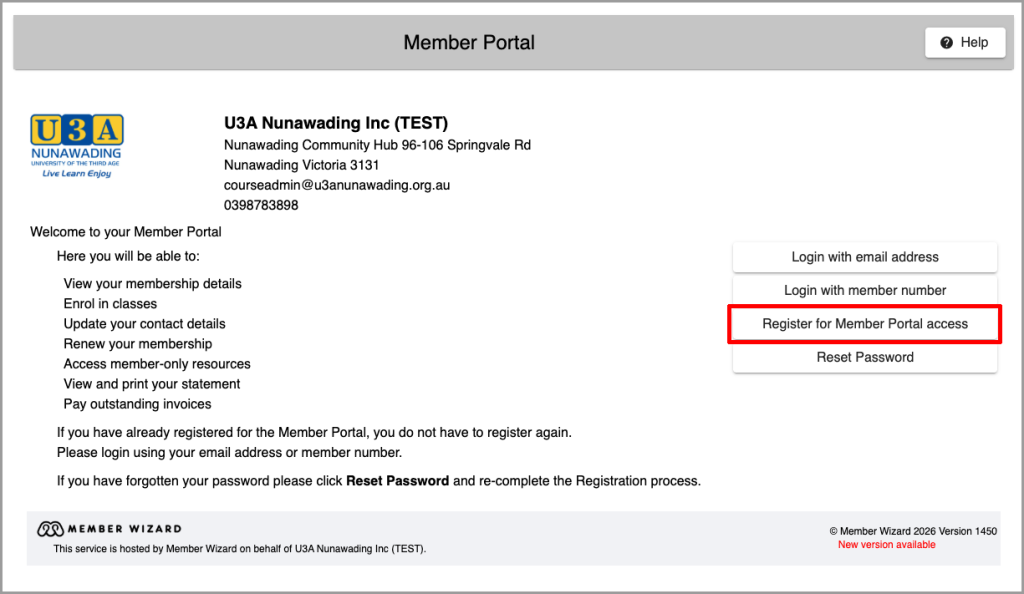
1. When the Member Portal login screen is displayed, click on the Register button on the right of the screen.
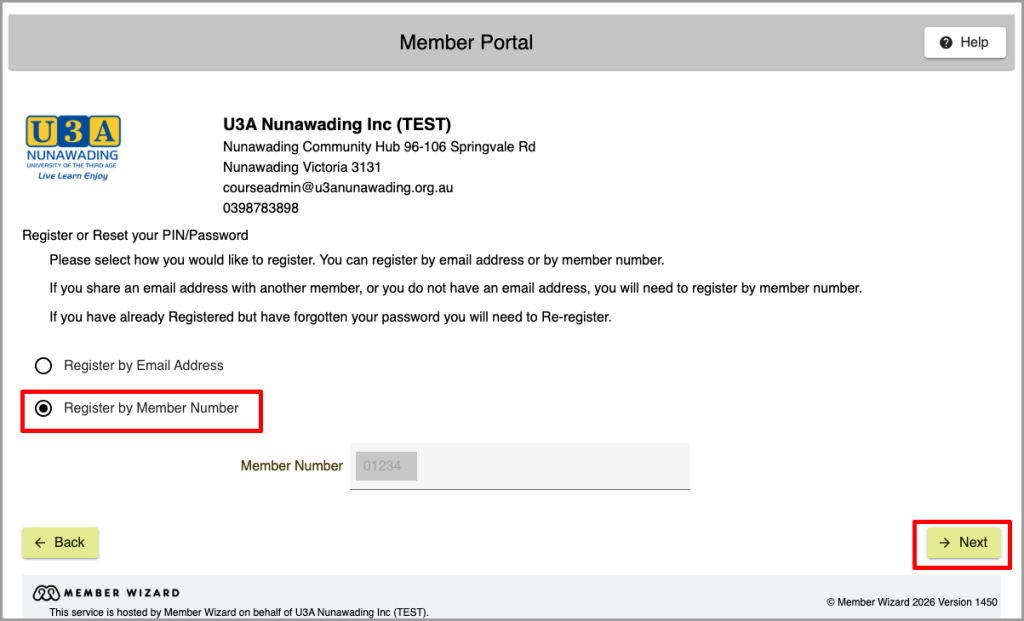
2. Select Register by Member Number, enter your U3A Member Number and click on Next. Alternatively, you can register using your email address.
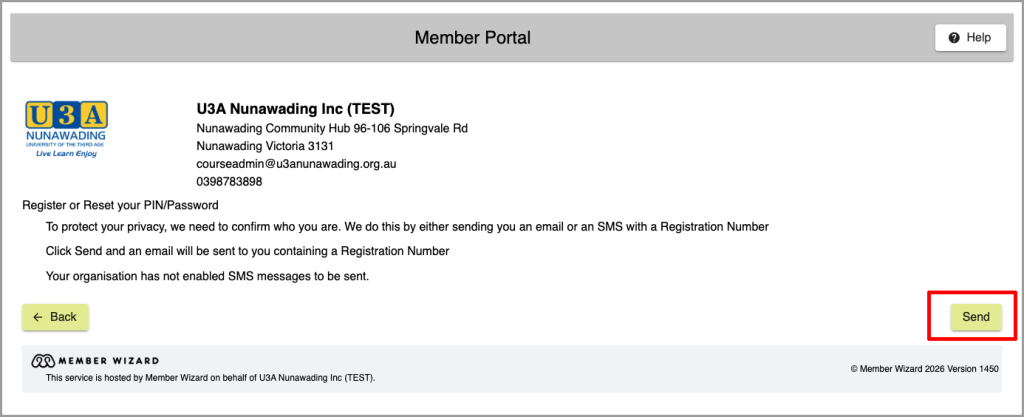
3. On the next screen, click on the Send button.
The system will send a security code (Registration Number) to your email address to confirm your identity. The next screen will then be displayed for you to enter the Registration Number.
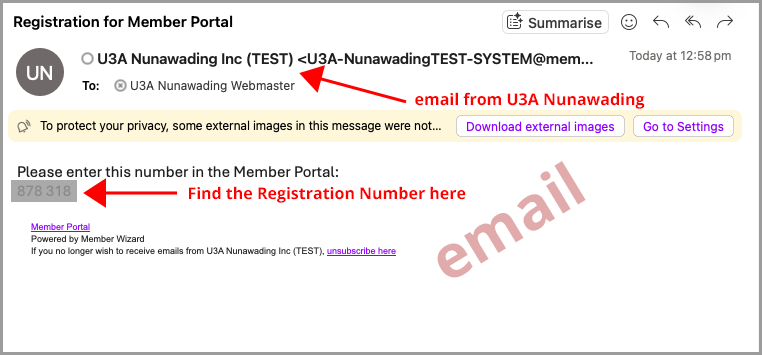
4. Go to your email inbox.
Find the email sent from U3A Nunawading which contains a 6-digit security code (Registration Number). If you do not see this email after 5 minutes, check your junk/spam email folder to see if it is there.
5. Go back to Member Portal and enter the Registration Number, then click on Confirm Registration Number.
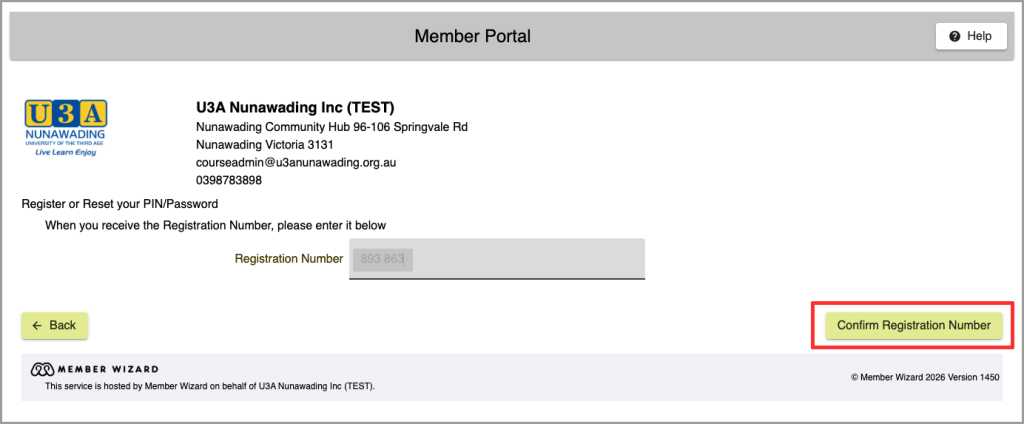
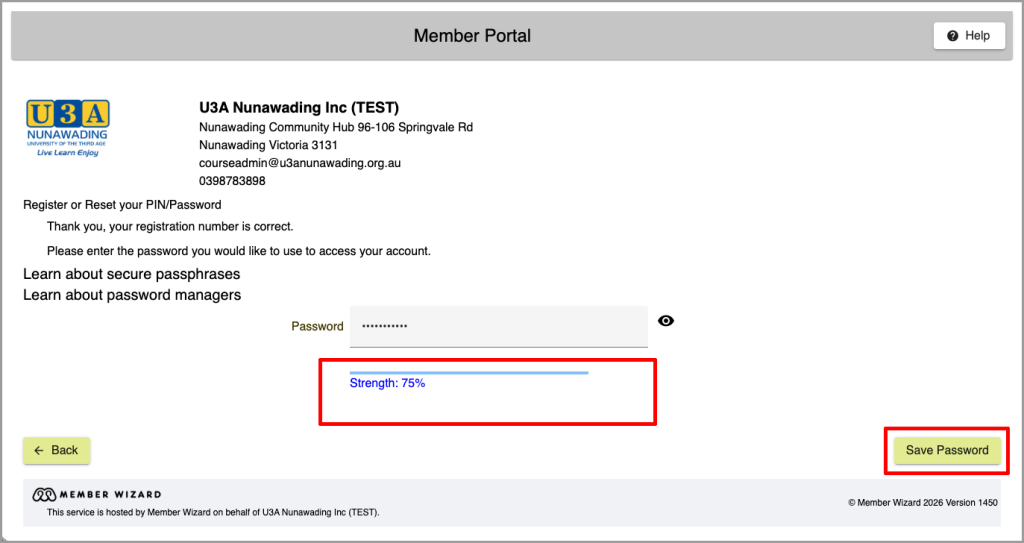
6. Create your password for logging into Member Wizard.
It should be at least 9 characters long, with at least one uppercase letter, one number and a special character. Enter your password into the Member Portal and record it safely for future use.
Click on “Save Password” so that Member Wizard records it as well.
Should I use my U3A Member Number or my email address to register for Member Portal?
It is better to use your Member Number so that, if you change your email address in the future, it will not prevent you from logging into Member Portal.
My partner and I share the same email address. Why can’t we use our email address to register for Member Portal?
Each of you should use your own Member Number to register so that you can login independently of each other.
Why is my Registration Number not emailed to me?
There are two reasons why you may not have received the email containing your Registration Number.
a. The email containing your security code (Registration Number) is in your junk/spam email folder. If you cannot find the email in your Inbox, try looking in your Junk folder.
b. Your email address recorded in Member Wizard is different from the one you are currently using. If this is the case, contact Course Admin () and request that your email address in Member Wizard be updated to your current one. After your email address has been updated, repeat the steps to register for Member Portal.
Login to the Member Portal
The Member Portal is your starting point for Member and Class Leader actions.
How do I login to Member Portal?
Go to the U3A Nunawading website (u3anunawading.org.au/) and click on Member Wizard > Member Login.
Note that before you can login to Member Portal for the first time, you must register on Member Portal to verify your identity. Then you can set up your password which will be used for logging in.
Can I use my UMAS password to login to Member Portal?
You must register on Member Portal first to verify your identity and then you can set up your password for Member Portal. If you wish, you can choose to use the same password that you used to login to the previous system but it is likely to be flagged as not strong enough.
See the answer for “How do I register on Member Portal” for more information.
When I try to set my password, why is it not accepted?
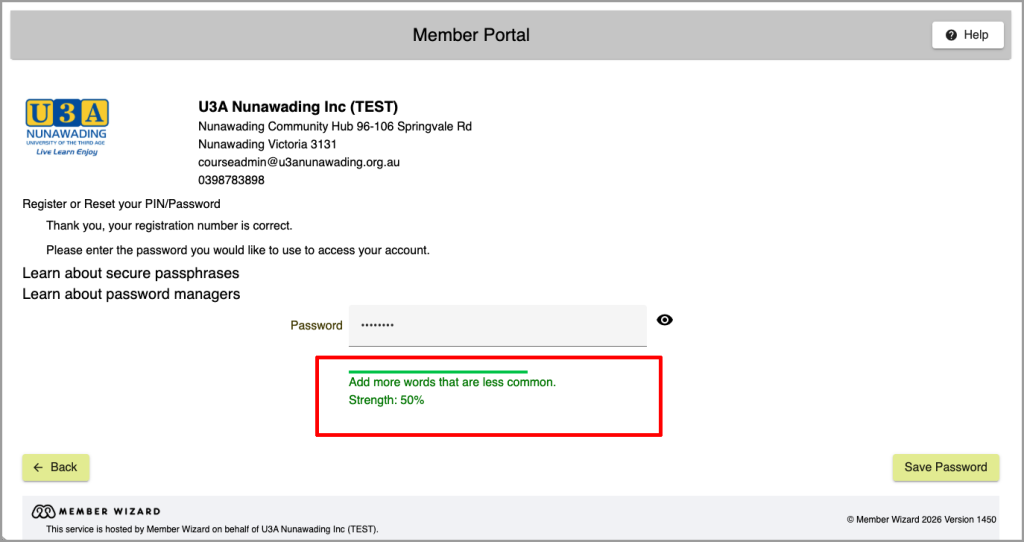
When you set a new password, it must have at least 75% strength or the system will not accept it. To achieve 75% strength, the password must have at least 9 characters which must include at least one capital letter, one number and one special character (eg: #,*,@). An example of a password with 75% strength is “WhichWatch#1”.
Passphrases are even better using 3-4 words with a blank space between each word. An example of a passphrase is “wasps-2MITTENS-task”.
I have forgotten my password. What can I do?
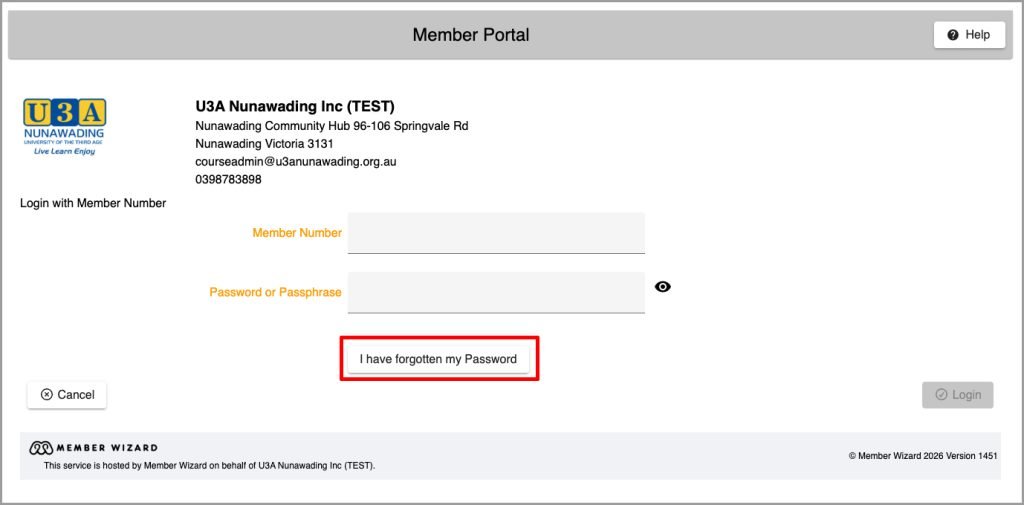
If you do not remember your password, click on the button “I have forgotten my Password” on the Login page. You will then be able to change your password.
I am unable to login to Member Portal. What should I do?
Firstly, check that you have used the correct Member Number and password to login to Member Portal. If correct, then try changing your password by clicking on the button “Reset Password” on the Welcome screen or the button “I have forgotten my Password” on the Login screen.
If you are still unable to login after changing your password, contact Course Admin for help.
Using the Member Portal
Once logged in, you can carry out all the functions you used to do in the previous system.
What functions are performed through the Member Portal?
Member Portal is the area in Member Wizard where you can login to perform the following functions:
- View membership details and update personal details
- Indicate interest to become a volunteer
- View your current enrolments and waitlists
- Enrol in or request withdrawal from classes
- Advise absence (apologies) for a class
- Email the Class Leader
- Renew your membership
- Make payments and view outstanding payments.
You must register on Member Portal to verify your identity. Then you can set up your password for logging in to Member Portal.
How do I update my personal details?
Once logged in, click on Change my Contact Details
To change any of your details, click the Edit Contact Details button below your details.
Make your changes then click the Save button.
You cannot change items that are greyed out. If these are incorrect please see Course Admin.
How do I enrol/waitlist for a class?
Click on Classes and Events in the main menu of the Member Portal home page, to view all classes. To find the class you want, you can:
- browse the list,
- select a category of classes to restrict the list
- search using the class code (the most efficient way for our long list of classes).
Select a class and click on the Enrol now / Join Waiting List button.
A window will pop up with the message “Your enrolment is not complete. When you have finished choosing classes, click the Shopping Trolley Checkout”. Click on the OK button to close the window.

You can continue to select more classes. When you have finished selecting classes, click on the large green Checkout button that is located on the top right corner.
A new screen will display, showing all the classes you have selected. Click on the Checkout button that is located on the bottom right corner. This confirms your selection of classes and you will be enrolled/waitlisted in those classes.
Where can I see the list of classes in which I am enrolled/waitlisted?
After you have logged in to Member Portal, click on My Classes in the main menu on the home page. Your list of enrolled/waitlisted classes will be displayed.
I have enrolled/waitlisted for a class. Why is it not showing in my list of enrolled/waitlisted classes?
If a class is missing from your list of enrolled/waitlisted classes displayed in Member Portal, it means that you did not manage to successfully enrol/waitlist for that class.
See the answer for “How do I enrol/waitlist for a class?” for more information.
I have withdrawn from an enrolled/waitlisted class. Why is it showing that I am still enrolled/waitlisted in the class?
Member Wizard only allows you to make a request to withdraw from a class. In the Member Portal, when you click on Withdraw from class in the left panel, your withdrawal request is sent to Course Admin, who need to action it before the class drops off your list of enrolled/waitlisted classes. This may take a couple of days. You will receive a confirmation email once processed.
How do I advise that I will be absent for a class?
(updated)
- Login to Member Portal.
- Click on My Classes from the main menu. Your list of enrolled classes will be displayed on the screen.
- Select Advise Absence from the left-hand menu.
- When the Advise Absence screen is displayed, you have the choice of:
– using a date range which will apply across all your classes OR
– selecting exact dates class by class. - Using a date range:
– Click on the From date and select the first date you will be absent
– Click on the To date and select the last date you will be absent
– A list of your enrolled classes will appear, already ticked. Remove the tick from any class you don’t want to apologise for
– Add any notes you want to send to the Class Leaders
– Click on the Save button - Selecting exact dates:
– Click on the Date field and tick one or more dates from the drop-down list for the days on which you will be absent.
– Click on the Save button.
– If you will be absent from more classes, select each one in turn and mark the dates when you will be absent.
– Click on the Save button each time. - Depending on whether your class leader has elected to receive absence notifications or not, a “No emails were sent” message or a message advising of emails sent will show on the screen. Click on the OK button. Your advice of absence (aka apology) will be automatically recorded on the Attendance Sheet.
You can also:
- Mark the Attendance Sheet in advance of your absence (or ask the Class Leader to)
- Advise the Reception Desk in person (they will get you to fill in a blue form if your absence extends into next term).
- Call the Reception Desk (phone: 9878 3898)
- Email .
You only need to advise your absence/s by ONE of these methods.
Where can I see the list of classes in which I am enrolled/waitlisted?
After you have logged in to Member Portal, click on My Classes in the main menu on the home page. Your list of enrolled/waitlisted classes will be displayed.
I have enrolled/waitlisted for a class. Why is it not showing in my list of enrolled/waitlisted classes?
If a class is missing from your list of enrolled/waitlisted classes displayed in Member Portal, it means that you did not manage to successfully enrol/waitlist for that class.
See the answer for “How do I enrol/waitlist for a class?” for more information.
I have withdrawn from an enrolled/waitlisted class. Why is it showing that I am still enrolled/waitlisted in the class?
Member Wizard only allows you to make a request to withdraw from a class. In the Member Portal, when you click on Withdraw from class in the left panel, your withdrawal request is sent to Course Admin, who need to action it before the class drops off your list of enrolled/waitlisted classes. This may take a couple of days. You will receive a confirmation email once processed.
How do I advise that I will be absent for a class?
- Login to Member Portal.
- Click on My Classes from the main menu. Your list of enrolled classes will be displayed on the screen.
- Select the class from which you will be absent. The left-hand menu items will become available.
- Select Advise Absence from the left-hand menu.
- When the Advise Absence screen is displayed, click on the Date field and tick one or more dates from the drop-down list for the days on which you will be absent. Click on the Save button.
- If you will be absent from more classes, select each one in turn and mark the dates when you will be absent. Click on the Save button each time.
- Depending on whether your class leader has elected to receive absence notifications or not, a “No emails were sent” message or a message advising of emails sent will show on the screen. Click on the OK button. Your advice of absence (aka apology) will be automatically recorded on the Attendance Sheet.
You can also:
- Mark the Attendance Sheet in advance of your absence (or ask the Class Leader to)
- Advise the Reception Desk in person (they will get you to fill in a blue form if your absence extends into next term).
- Call the Reception Desk (phone: 9878 3898)
- Email .
You only need to advise your absence/s by ONE of these methods.
Where can I see the list of classes in which I am enrolled/waitlisted?
After you have logged in to Member Portal, click on My Classes in the main menu on the home page. Your list of enrolled/waitlisted classes will be displayed.
I have enrolled/waitlisted for a class. Why is it not showing in my list of enrolled/waitlisted classes?
If a class is missing from your list of enrolled/waitlisted classes displayed in Member Portal, it means that you did not manage to successfully enrol/waitlist for that class.
See the answer for “How do I enrol/waitlist for a class?” for more information.
I have withdrawn from an enrolled/waitlisted class. Why is it showing that I am still enrolled/waitlisted in the class?
Member Wizard only allows you to make a request to withdraw from a class. In the Member Portal, when you click on Withdraw from class in the left panel, your withdrawal request is sent to Course Admin, who need to action it before the class drops off your list of enrolled/waitlisted classes. This may take a couple of days. You will receive a confirmation email once processed.
How do I advise that I will be absent for a class?
- Login to Member Portal.
- Click on My Classes from the main menu. Your list of enrolled classes will be displayed on the screen.
- Select the class from which you will be absent. The left-hand menu items will become available.
- Select Advise Absence from the left-hand menu.
- When the Advise Absence screen is displayed, click on the Date field and tick one or more dates from the drop-down list for the days on which you will be absent. Click on the Save button.
- If you will be absent from more classes, select each one in turn and mark the dates when you will be absent. Click on the Save button each time.
- Depending on whether your class leader has elected to receive absence notifications or not, a “No emails were sent” message or a message advising of emails sent will show on the screen. Click on the OK button. Your advice of absence (aka apology) will be automatically recorded on the Attendance Sheet.
You can also:
- Mark the Attendance Sheet in advance of your absence (or ask the Class Leader to)
- Advise the Reception Desk in person (they will get you to fill in a blue form if your absence extends into next term).
- Call the Reception Desk (phone: 9878 3898)
- Email .
You only need to advise your absence/s by ONE of these methods.
The action I want in the left-hand menu is greyed out
You first need to select the class in the main pane, then the actions will be available.

If your browser window is narrow, you may find the Action menu is hidden at times. Click on the red circle to the left of the page title to open the Action menu.
Using the Leader Portal
Leader Portal is the area in Member Wizard where you (as Leader or co-Leader) manage your classes, such as printing class lists, uploading class resources and emailing your class members (students).
How do I get to the Leader Portal?
Login to Member Portal first. Then click on Leader Portal in the left panel on the Member Portal home page. You will see this menu item only if you are a Class Leader or Co-Leader.
I am a Class Leader. Why can’t I access the Leader Portal?
Please contact Course Admin () and advise them of this issue, your full name and the name of the course for which you are a Class Leader or Co-Leader.
There are several reasons why this could have happened:
- Your name may have been missed out from the Leaders / Co-Leaders list in Member Wizard
- Your name may not have been enabled for Portal Class Management in Member Wizard
I am a Class Leader. Why is my class not listed in the Leader Portal?
See the answer for “Why can’t I access the Leader Portal”.